If you’re publishing several books with the same look, the second one shouldn’t start with another round of decisions about chapter headings and paragraph spacing. KDP Formatter’s Template Settings let you save those decisions once. Here’s how to build a template from a real project, check it, and reuse it on the next book.
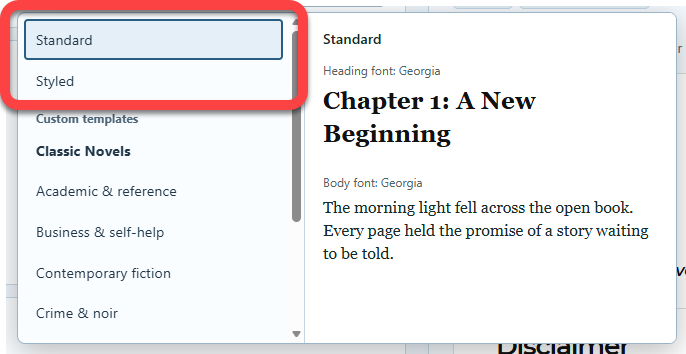
Choose a sample from the kind of book you publish
Pick a chapter with a short opening, at least one long heading, and a few pages of body text. In Template Settings, use Standard as a starting point for a restrained layout or Styled if you want a more decorative chapter opening. Give your own template a name that identifies its purpose, such as Practical Guides Print. Keep a separate name for a materially different style.
Set the body text before styling the chapter opener
On a print layout, choose your body font and size, then adjust line spacing, paragraph spacing, and the first-line indent.
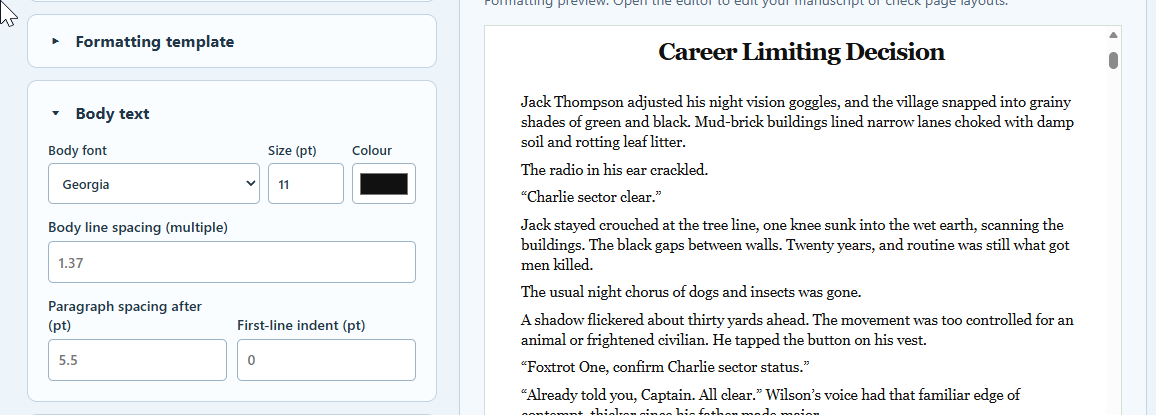
Look at a whole page before deciding. A paragraph that seems comfortably spaced in the sample may use more room than you want across a long chapter. Next, make sure the two heading levels you use most often look distinct when they appear close together.
Make long chapter titles part of the preview
Decide whether the number and title should share one line or appear as separate elements.
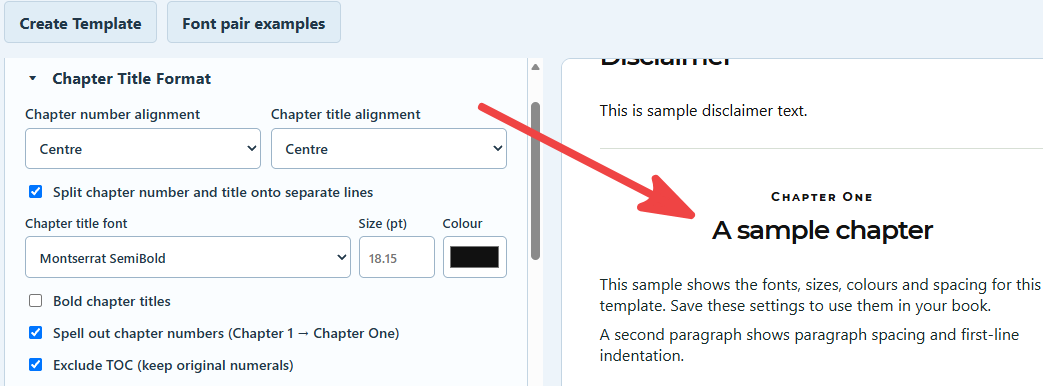
For a split heading, you can style the number and title independently, then set the gap and choose whether to use a divider. Try a title that wraps onto two lines. Check that it still reads as a single chapter heading and leaves enough room for the opening paragraph.
Check the pages outside the chapters
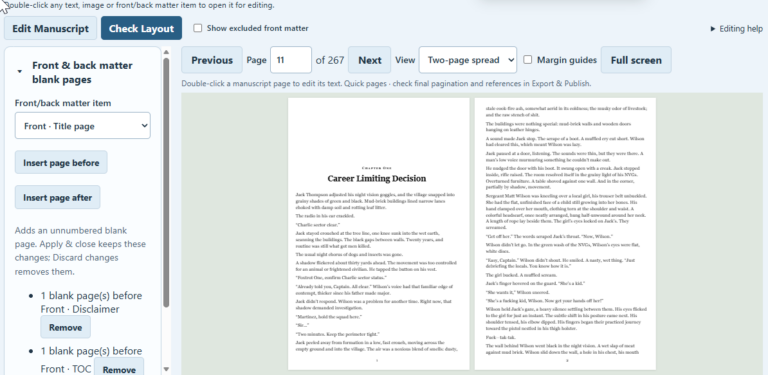
Use the template preview to review the title page, dedication, copyright page, and contents alongside the chapter sample.
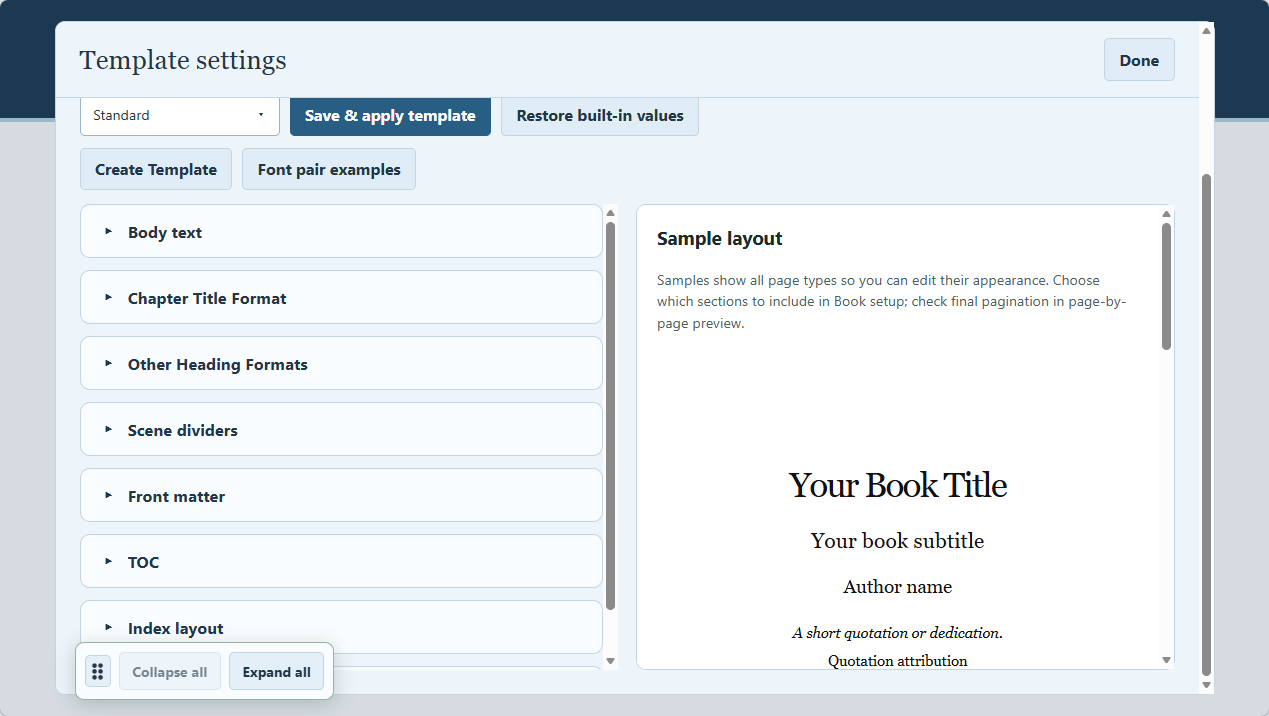
If you publish print books with an index, check its type and spacing too. Save visual choices in the template. Keep reusable wording in Resources, and set metadata, trim size, and margins for each project.
Save the template, then try it on a second project
Pick your saved style in the formatting-template chooser and use its preview to confirm you’ve selected the right one. When a specific book needs an exception, adjust that book’s setting. The fields that use template defaults show the inherited values, so you can tell what the template is doing and what you’ve overridden.
If you’re choosing fonts together, use the font-pair examples to see how heading and body fonts look side by side.
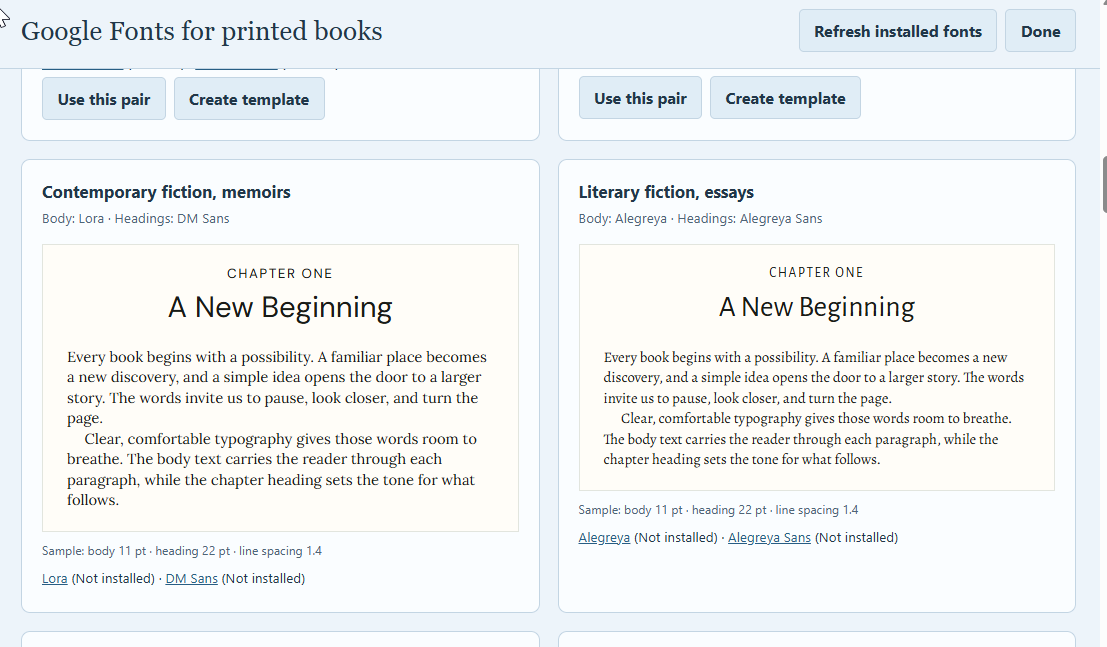
The screen shows which fonts are installed. If you’ve just added a font, refresh the list before applying the pairing.
Review print and Kindle separately.
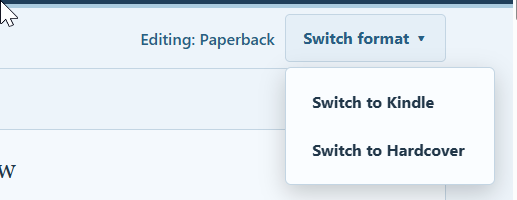
The print template sets the appearance of a fixed page, while Kindle readers can adjust reflowable body text. Once both editions look right in their own previews, you’ve got a reliable starting point for the next book.
For the full workflow from Word import to export, see the related tutorials on the KDP Formatter page.
Software covered: KDP Formatter


Leave a Reply