Your manuscript is ready, but the Kindle edition and the printed book still need different files. KDP Formatter is the app I built for that last stretch. It brings the manuscript, page design, and cover into one project, so you can work through each edition before uploading the finished files to Amazon KDP.
Start with the edition you plan to release first
Import your Word manuscript and choose Kindle, Paperback, or Hardcover. Check the chapter breaks and headings before spending time on individual pages. When you open a second format for the first time, the app copies your work as a starting point. From then on, changes to one edition stay with that edition. You can give the paperback more generous spacing, for instance, without changing the Kindle book.
Design the pages your readers will actually see
Set the body text, paragraph spacing, and heading styles with a formatting template, then check how they work together in a real chapter. If you publish a series, save the layout as a template and keep recurring text, such as a copyright notice or an About the Author section, in the Resources library. A template controls how a page looks. A resource gives you editable text to reuse.
Add the title page, copyright page, contents, and any back matter you need. For print, check where page numbering starts and which sections appear in the contents. For Kindle, use the reading preview to follow the links and see how the book flows when the reader changes the text size.
Treat the print cover as its own job
A Kindle cover is a front image. A print cover has a front, a back, and a spine. You can work from separate artwork, a finished wrap, or an existing cover PDF. Before finalizing a print cover, settle the interior page count and confirm that the cover matches that edition. If you add pages after laying out the cover, revisit the spine dimensions.
Catch layout problems before upload
Use Check Layout to inspect chapter openers, awkward blank pages, images, and page numbers. If you’re publishing a reference book, the index editor lets you review individual occurrences and cross-references. Optional OpenRouter features can help with tasks such as suggesting index terms, and the app shows an estimated cost before sending an AI request.
Export an EPUB for Kindle, or the interior and cover PDFs for print. Save the project with those exports so you can return to the same settings when you make corrections. Give the exported files a final review in Amazon’s preview tools.
New to the app? Start with the related tutorials below, or visit the KDP Formatter product page for download information.
Related tutorials
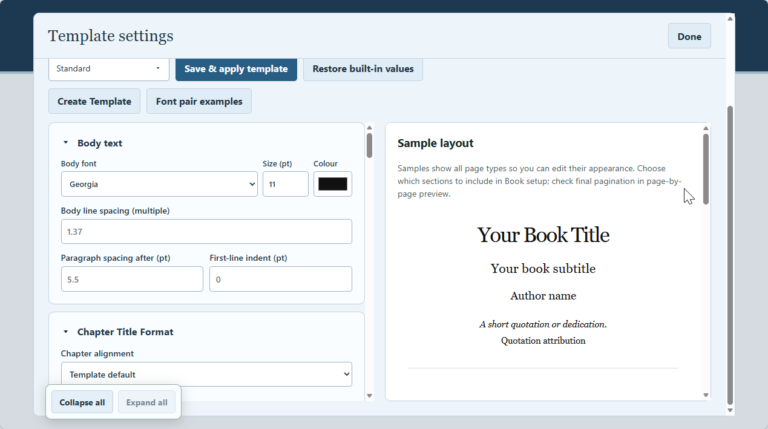
Book Formatting Templates
Build a book formatting template from a sample chapter and reuse your fonts, spacing, and chapter styles across future titles.
Read tutorial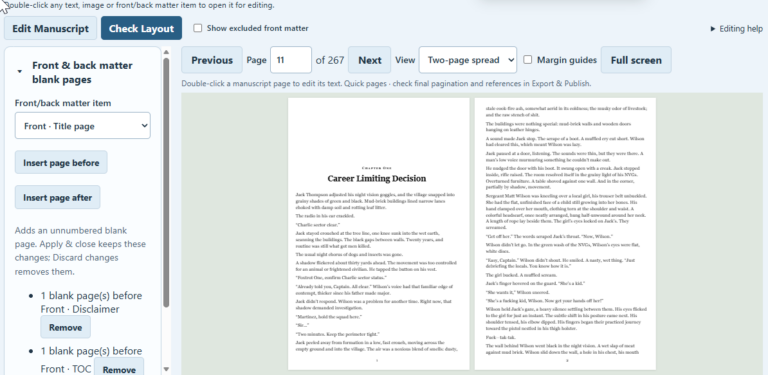
How to Prepare a Book for Amazon KDP with KDP Formatter
Follow the video and a practical checklist to import, format, preview, and export your Kindle or print book with KDP Formatter.
Read tutorial